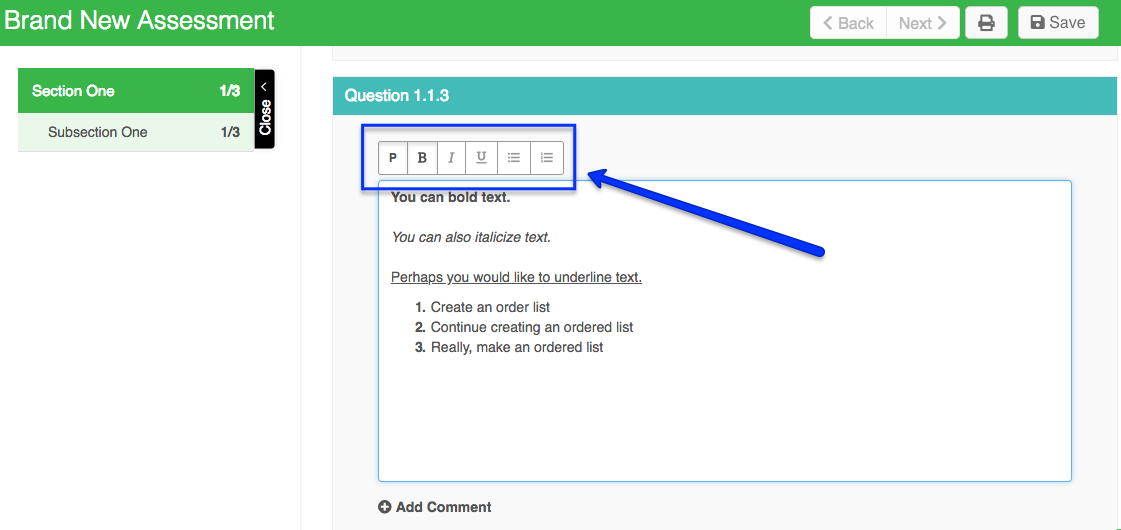
As a member of a community, when completing an assessment you have the ability to apply rich text formatting within any text boxes, giving you the ability to bold, italicize, and underline text; utilize both bulleted and numbered lists; and enter carriage returns within your text and have those preserved between lines and paragraphs of text, giving you a more easily digestible display of your responses.
Steps to Apply Rich Text Formatting
1. Once logged into FoodLogiQ Connect, click the Assessment button on the left-hand side of the page.
2. Select the assessment you would like to complete
3. Once within the assessment, if you come across a question which provides a text box, utilize any rich text formatting that you see fit.
Details on Applying Rich Text Formatting in an Assessment
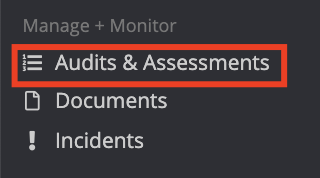
1. Once logged into FoodLogiQ Connect, click the Audits & Assessments button on the left-hand side of the screen:
2. Click on the assessment which you would like to complete

3. Once within the assessment, if you come across a question which provides a text box, utilize any rich text formatting that you see fit.